
何振杰
Published at: 2025-12-29
Syscom 1000T Upgrade Tutorial
For Solidcom 1000T
Version: V4.4.7.0
Download Path:
- Unzip the upgrade files to the C Drive of your PC;
- Do not power off or disconnect the USB cable during the update
- This update is for Windows 10 OS only.
Upgrade the master station:
Step 1:
 >>>
>>>
Step 2: upgrade the station’s MCU
(1)Connect PC to Base station via USB to Type-C cable (The Type-C interface on the back of Base station)

(2)Open the [HLWI0108B_Tools_V2.8.exe] in [2.Base station\1-PC Upgrade]
 >>>
>>>
(3)Open the “Device manager” to check the “USB-SERIAL CH340” port number.

(4)Choose your port number, and connect it.


(5)Choose [HLWI0108B_FP_APP.hex] in [2.Base station\1-PC Upgrade]


(6)Choose [main board app] and click [Download new firmware]
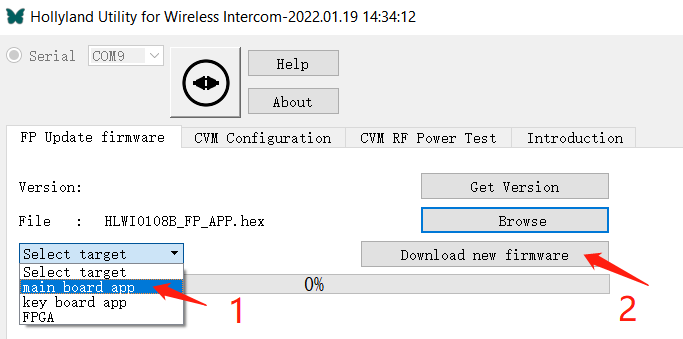
(7)Then reboot the base station to do the upgrade.

Step 3: upgrade the station’s LCD screen
(1)Copy the file [HLWI0108B_FP_Panel_app] in [2.Base station\2-USB flash disk\1] to your USB flash disk root directory. (USB flash disk need to format to FAT32 first)
 >>>
>>> >>>
>>> >>>
>>>
(2)Connect the USB disk to the USB interface on the front of the base station, then press and holding the [RESERVE] botton on the station and reboot the station at the same time, it will do the upgrade automatically.


(3)Copy all the file in [2.Base station\2-USB flash disk\2] to your USB flash disk root directory. Clear out the old files in USB disk.
>>>>>> >>>
>>>
(4)Connect the USB disk to the station, press and holding the [RESERVE] botton on the station and reboot the station at the same time to do the upgrade again.

Step 4: Upgrade the beltpack’s MCU
- Connect PC to the beltpack via USB to Type-C cable, and turn on the beltpack.
- Then open the [HollylandTool_V1.1.4.exe] in [3.Beltpack\1]
 >>>
>>> >>>
>>>
- Choose model [HLWI0108B


- Choose upgrade folder.


And reboot the beltpack to do the upgrade.

Step 5: Upgrade the beltpack’s LCD screen
(1)Turn on the beltpack, and open the [Pp_Ui_update_1.2.exe] in [3.Beltpack\2]
 >>>
>>> >>>
>>>
(2)Choose the upgrade file


(3) Do the upgrade


(4)Upgrade other beltpacks as well.
Step 6: Reset the station and pair the beltpack (if the beltpack can't connect to the station)

Please long-press the "MIC MUTE" and "RMT MIC KILL" button at the same time to reset the station (all beltpack connected info will be reset so you need to pair the beltpack again)